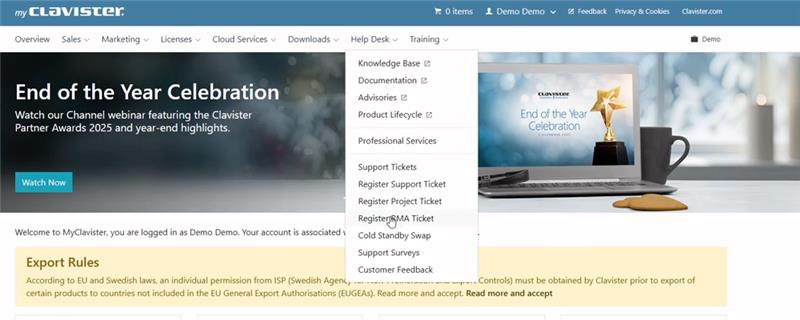
- To submit a hardware replacement RMA request, login to your MyClavister account.
- After logging in, navigate to the top menu and navigate to ‘Help desk’ and click ‘Register
RMA ticket’ in the drop-down menu. -
- Start by selecting the product that you wish a hardware replacement RMA request for, and
its current firmware version from the dropdown menus, and click ‘Next’. - Enter the serial number and service tag and click ‘Next’. You can find the serial number and
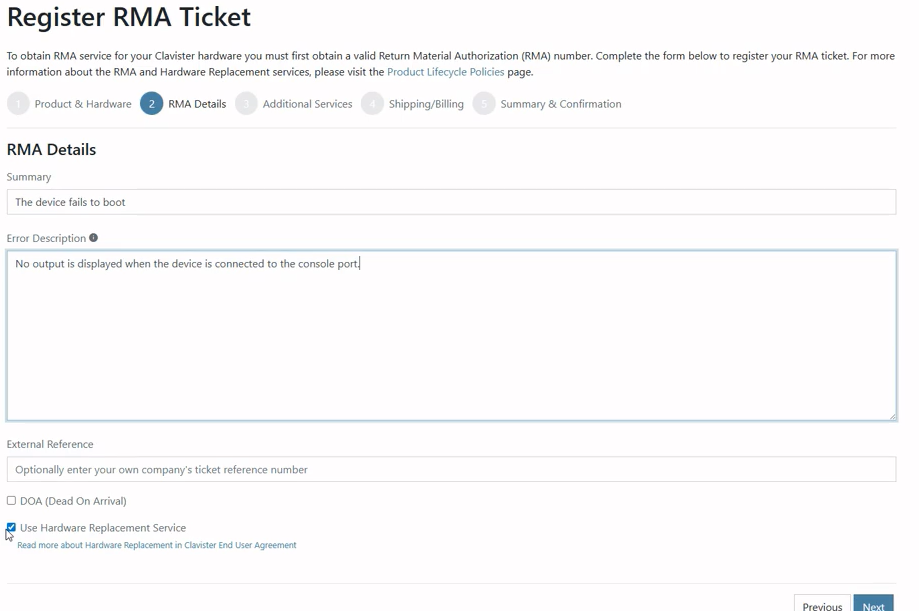
service tag on the underside or the back of the unit. - Enter a short summary of the problem followed by a detailed description of the issue you
are experiencing. If you have an internal tracking number, you can enter it in the ‘External
Reference’ field. If the product was nonfunctional upon arrival, please check the ‘DOA (Dead
on Arrival)’ box. For all other cases, select ‘Use Hardware Replacement Service’, and click 'Next'. -
- Read and select ‘Accept’ to agree to the service terms.
- Review any additional services that may be available or simply click ‘Next’.
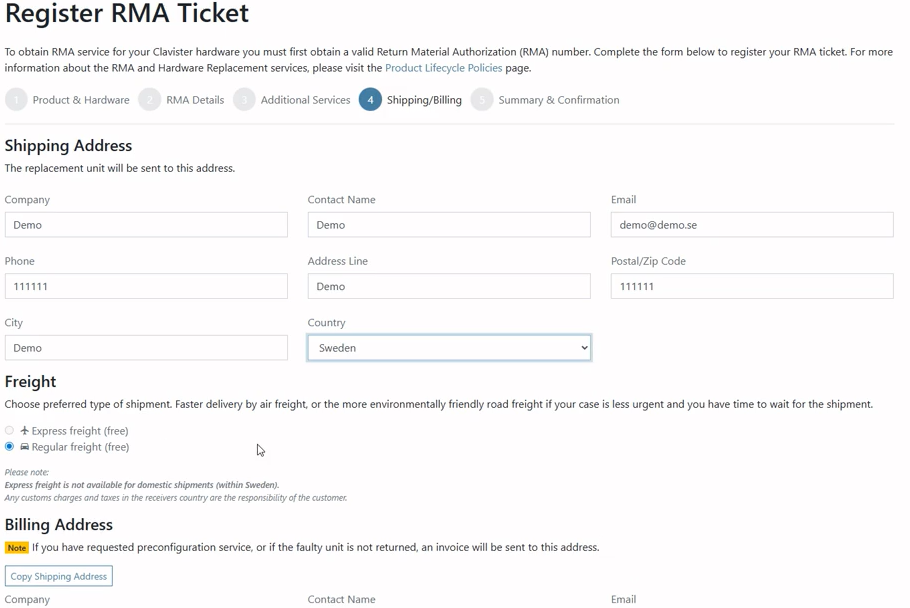
- Fill in your shipping address and select your preferred freight method. Choose ‘Express’ for a
faster delivery by air freight or ‘Regular’ for if your case is less urgent. -
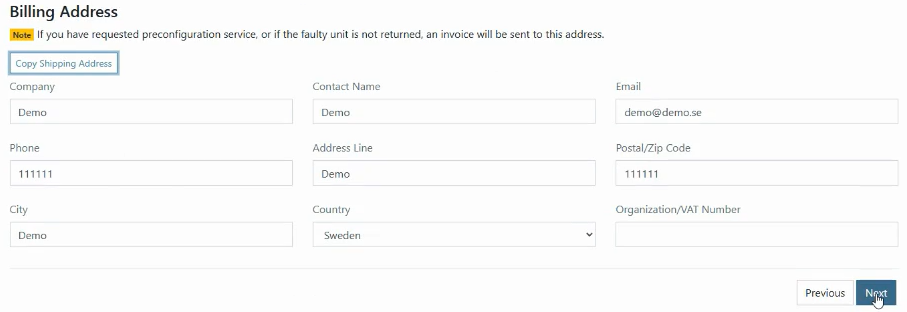
- If your billing address matches your shipping information, simply click ‘Copy Shipping
Address’, to fill the form automatically. Otherwise, enter the correct billing details and click
‘Next’. -
- Review you RMA request for accuracy. When you are ready, click ‘Finish’ to submit your RMA
request ticket. - Once the RMA request is approved, Clavister will dispatch the replacement hardware unit
the next business day. - After receiving the replacement, the customer is required to ship the faulty hardware and
indicate its RMA ticket number within 15 business days, to this shipping address: -
Clavister AB
Sjögatan 6J
SE-891 60
Örnsköldsvik Sweden- If the faulty hardware is not shipped within this period, Clavister reserves the right to invoice
full cost of the replacement hardware.
- If the faulty hardware is not shipped within this period, Clavister reserves the right to invoice
- To activate the new hardware, customers must download the updated license from
MyClavister portal. This step is not applicable to customers with NetShield OPCO licenses. - Upon receiving the faulty hardware, Clavister will inspect the unit. Once the inspection is
complete, the RMA ticket will be closed.
How to submit a RMA
Last modified on 2 Apr, 2026. Revision 14
Tagsmyclavister