Step 1 - Got to the website
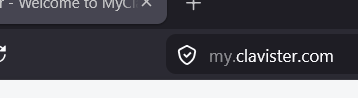
Login on https://my.clavister.com with your MyClavister account.
| TIP: For more information on creating an account, see the following guide: How to register a My Clavister account |
|---|
Step 2 - Open Training overview
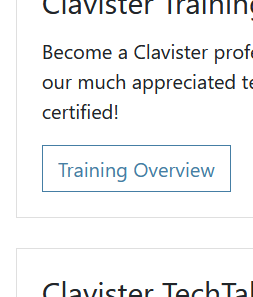
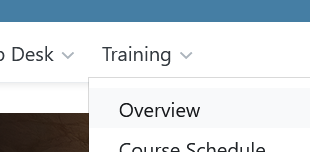
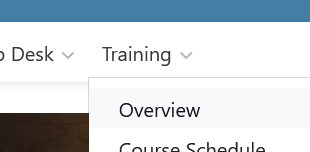
Go to the “ Training overview ” page, from the top menu or other links.
Step 3 - Open Course Schedule
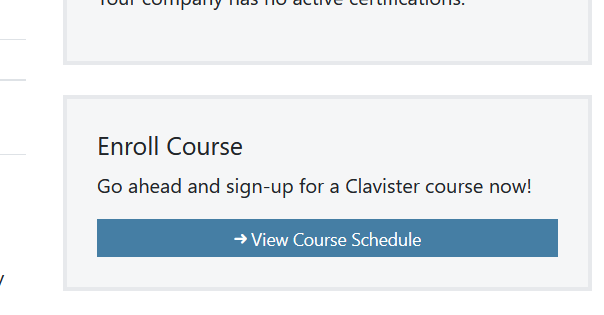
Open the “ View Course Schedule ” link. Which you can find as a blue button on the right side of the page.
Step 4 - Find a course
Under the “Course” option, select the course you want from the drop-down menu.
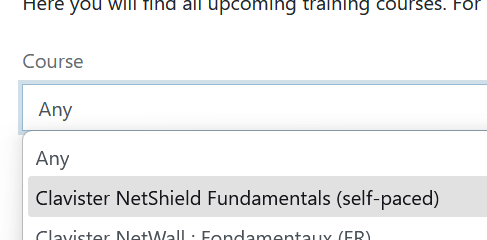
| TIP: If unsure, “Clavister NetWall Fundamentals” is usually a good place to start getting familiar with Clavister products (which is a trainer led course). Otherwise ask your Clavister representative for advice on what course is most relevant for you. Or you can reach us on our Contact page. |
|---|
Step 5 - Select a session
Select a course that is currently open by clicking its name on the left side of the list.

| TIP: If the course you want to take is not listed. Contact your Clavister representative to make arrangements. |
|---|
Step 6 - Register or request a quote
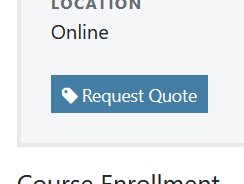
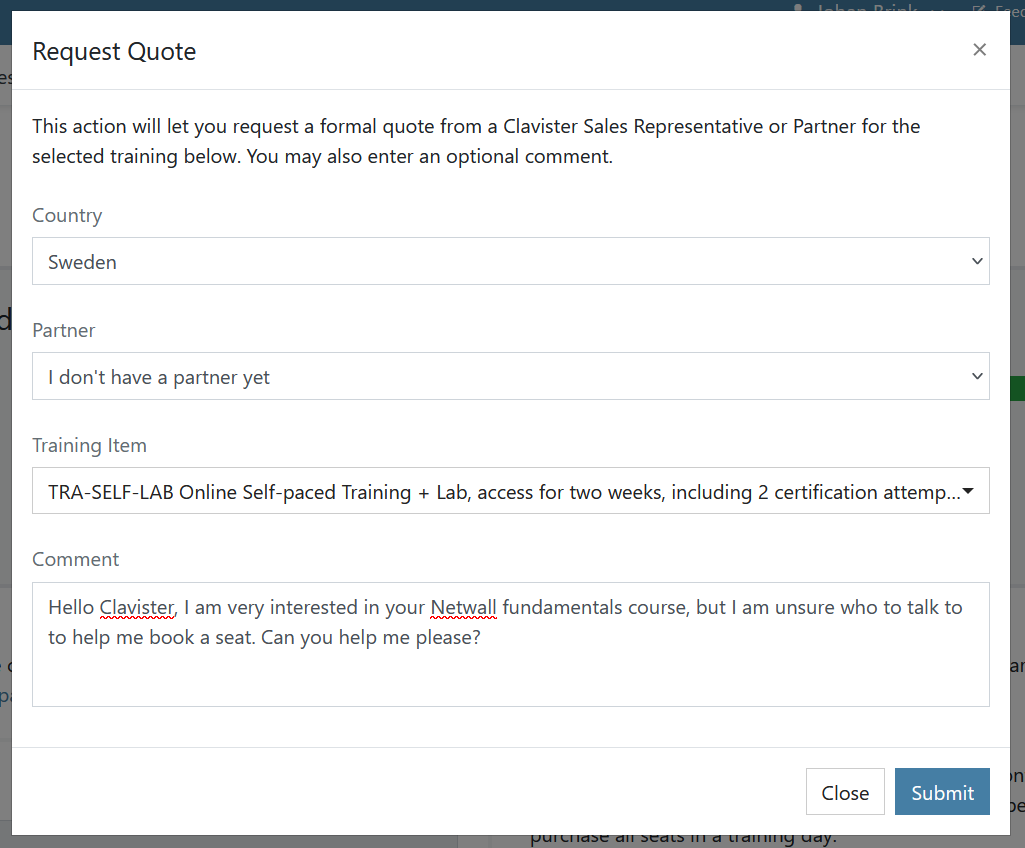
Look for the blue “Request Quote” button on the Left side of the page. Which will open up a contact form for you to fill out. When you have filled in all boxes, click “Submit” to send.
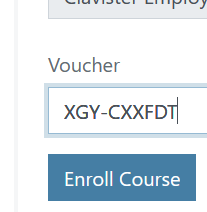 If you have gotten your Voucher code already, you can go ahead and enter it under “Voucher” at the bottom of the form. Then click “Enroll Course”.
Step 7 - Done
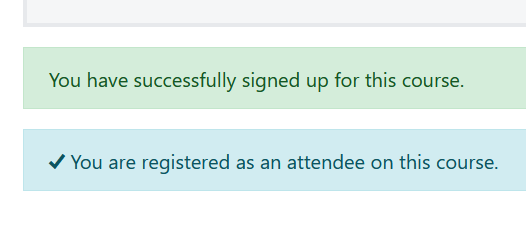
Once you have received a Voucher code and entered it properly to enroll (step 6), you will see a confirmation message on the page:
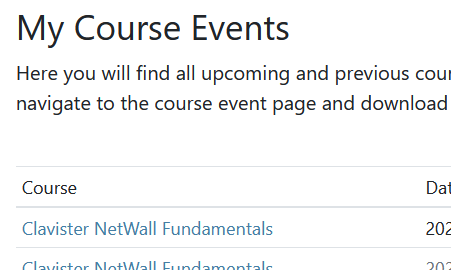
You can then always go back and find information about the session on your “Training overview” page under the section “My Course Events” further down the page.
Related articles
No related articles found.