Solution Overview
The setup enables secure remote access to internal applications using identity-based authentication and role-based access control. Users authenticate through Clavister IdAuth Cloud using OpenID Connect (OIDC), while NetWall enforces access policies based on user roles and group membership.
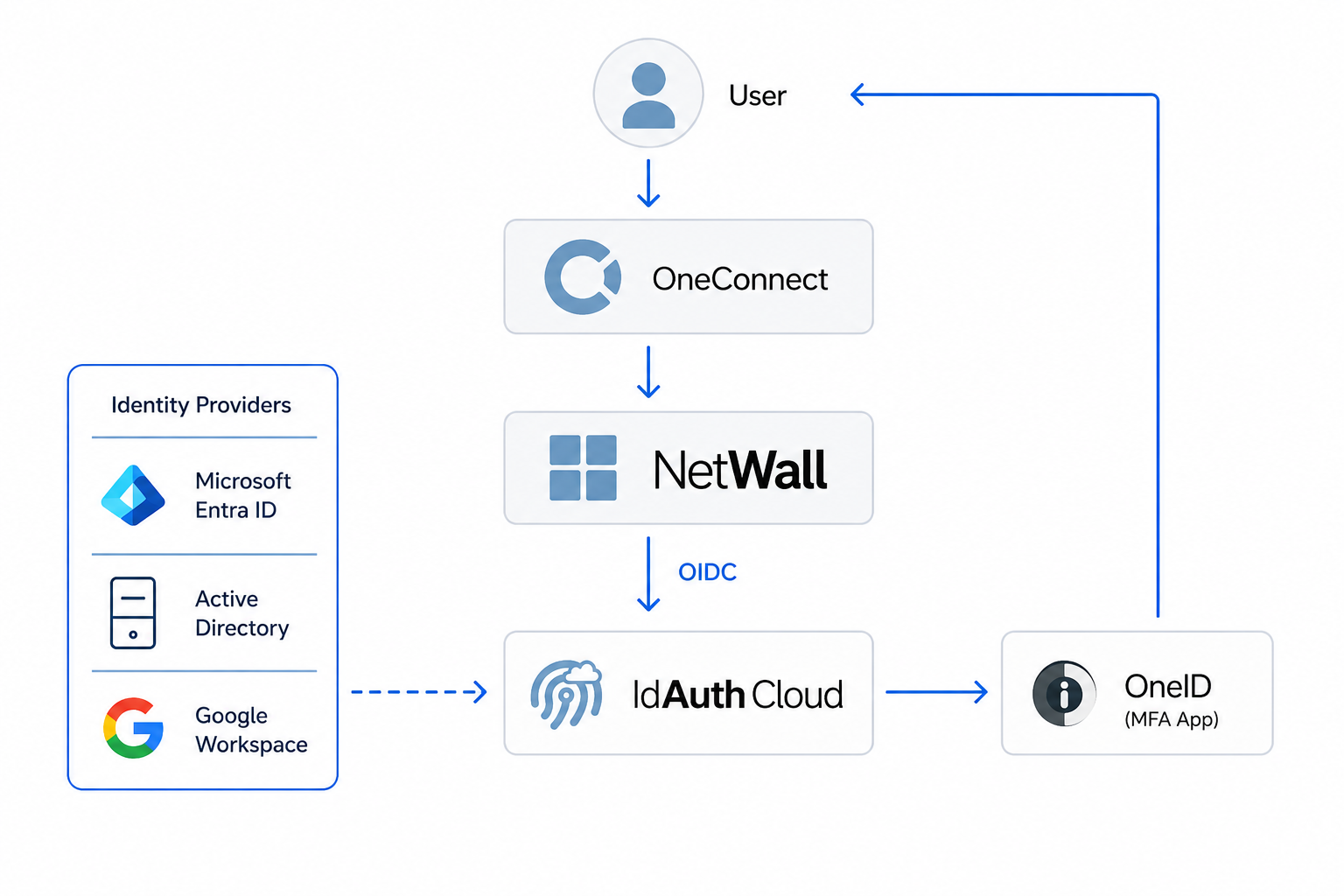
This guide also includes optional integration examples using external identity providers such as Microsoft Entra ID, local Active Directory and Google Workspace as user stores for IdAuth Cloud.
The article covers:
- Configuring roles and user authentication in IdAuth Cloud
- Setting up OIDC authentication between IdAuth Cloud and NetWall
- Configuring the OneConnect server on NetWall
- Mapping IdAuth Cloud roles to NetWall Group Objects
- Creating example access policies for different user groups
The example scenarios in this article demonstrate how different user groups can be restricted to only the applications they are authorized to access, following Zero Trust and least-privilege principles.
Prerequisites
Before starting, ensure you have:
- A configured and licensed:
- Clavister NetWall running cOS Core 15.00.04 or later
- Clavister IdAuth Cloud
- Public DNS name for the OneConnect server
- Valid HTTPS certificate
- OneConnect client installed
Useful related articles:
- How to - Enroll to Clavister Cloud Services - Getting your cloud instance up and running to be able to use IdAuth Cloud
- Issue Let's Encrypt certificate with ACME - Easiest way to get a valid HTTPS certificate
Configuring Roles and User Authentication in Clavister IdAuth Cloud
This section describes how to configure user authentication and role management in Clavister IdAuth Cloud. Roles are used to control which resources users are allowed to access after authenticating through OneConnect and NetWall.
IdAuth Cloud can use its internal user database or integrate with external identity providers such as Microsoft Entra ID, local Active Directory or Google Workspace. Regardless of the selected user store, the recommended approach is to assign users to groups in the identity provider and map those groups to roles in IdAuth Cloud.
Create Roles in IdAuth Cloud
Roles are used to represent access levels or departments and will later be mapped to Group Objects in NetWall.
Example roles:
- Sales
- Support
- IT-Admins
To create roles:
- Log in to the IdAuth Cloud management portal on Clavister Cloud Services
- Navigate to User Management.
- Create the required roles for your environment.
- Assign users or synchronized groups from Entra ID, local Active Directory or Google Workspace to the appropriate roles.
The example configuration in this article uses the following roles:
| Role | Purpose |
|---|---|
| Sales | Access to internal CRM systems |
| Support | Access to internal support systems |
For additional information about role-based access control in IdAuth Cloud, see:
Optional: Using an external User Store
Microsoft Entra ID, Active Directory or Google Workspace can be integrated with IdAuth Cloud to provide centralized authentication, MFA and group synchronization:
- How to - Using Microsoft Entra ID as user database in Clavister IdAuth Cloud
- How to - Using Active Directory as user database in Clavister IdAuth Cloud
- How to - Using Google Workspace as user database in Clavister IdAuth Cloud
These roles will later be mapped to Group Objects in NetWall to enforce application-specific access policies.
Setting up OIDC Authentication Between IdAuth Cloud and NetWall
This section describes how to configure OpenID Connect (OIDC) authentication between Clavister IdAuth Cloud and Clavister NetWall. The OIDC configuration allows NetWall to authenticate OneConnect users through IdAuth Cloud and retrieve user role information used for access control policies.
Create a new OIDC Relying Party of the type Clavister NetWall in Clavister IdAuth Cloud, also use this information to create an OIDC Provider in Clavister NetWall, this will be used in the OneConnect server configuration.
For detailed information on how to set up, see How to - Authenticate users in NetWall using Clavister IdAuth Cloud.
Configuring the OneConnect server on NetWall
This section describes how to configure the OneConnect server on Clavister NetWall for Zero Trust Network Access (ZTNA) deployments using IdAuth Cloud and OIDC authentication.
The OneConnect server is responsible for:
- Accepting remote client connections
- Redirecting authentication requests to IdAuth Cloud
- Establishing secure VPN tunnels
- Enforcing user-based access policies
Prerequisites
Before configuring the OneConnect server, ensure the following requirements are completed:
- OIDC authentication is configured between IdAuth Cloud and NetWall
- Public DNS name exists for the VPN service
- A trusted HTTPS certificate is installed on NetWall
First configure the OneConnect Server according to How do i set up a OneConnect VPN tunnel in cOS core KB article, and select the previous created OIDC Provider as authentication source.
Optional: Restrict Access to the OneConnect Server
Access to the OneConnect server can be restricted by assigning a specific role or Group Object to the OneConnect configuration, for example the role “VPN_Users”.
Using IdAuth Cloud Roles in NetWall Group Objects
This section describes how to map roles received from Clavister IdAuth Cloud to Group Objects in Clavister NetWall. These Group Objects are later used in authentication-aware security policies to control access to internal applications and resources.
When a user authenticates through OneConnect using OIDC, IdAuth Cloud includes the user’s role membership in the OIDC token. NetWall reads the configured group claim and dynamically assigns the user to matching Group Objects.
This enables role-based access control (RBAC) using identity information instead of traditional network-based access control.
The role mapping process works as follows:
- User authenticates through IdAuth Cloud
- IdAuth Cloud returns an OIDC token
- The token contains role information
- NetWall reads the configured group claim
- Matching Group Objects are assigned to the authenticated user
- IP policies use the Group Objects to allow or deny access
Understanding Group Objects in cOS Core
cOS Core uses Group Objects as logical identity containers for authenticated users.
Authentication groups are referenced in:
- IP Policies
- OneConnect access policies
- Application access policies
The cOS Core Administration Guide describes user group handling and authentication group membership as part of the authentication framework. 
Group names are case-sensitive and must match the values received from the external authentication source. 
Create Group Objects in NetWall
Navigate to:
Objects → User Authentication → Groups
Create a Group Object for each role received from IdAuth Cloud.
Using Group Objects in Security Policies
After the Group Objects are created, they can be referenced in IP policies and authentication-aware policies. Using role-based IP Policies allows access to be restricted according to Zero Trust and least-privilege principles.
Verify Group Membership on NetWall
Connect using the OneConnect client and authenticate through IdAuth Cloud, after successful connection.
Navigate to:
Status → User Authentication
Verify:
- Username
- Assigned groups
- Active sessions
The assigned Group Objects should appear in the authenticated user information.
Creating Example Access Policies for Different User Groups
This section describes how to use Group Objects from IdAuth Cloud in IP Policies to restrict access to internal resources.
Example Scenario
The following example uses two user roles:
| Role | Access |
|---|---|
| Sales | Internal CRM |
| Support | Internal Support System |
Example Objects
Example host objects:
| Address Object | IP Address |
|---|---|
| CRM_Server | 10.10.10.50 |
| Support_Server | 10.10.20.50 |
Example Group Objects:
| Group Object | Role |
|---|---|
| grp_sales | Sales |
| grp_support | Support |
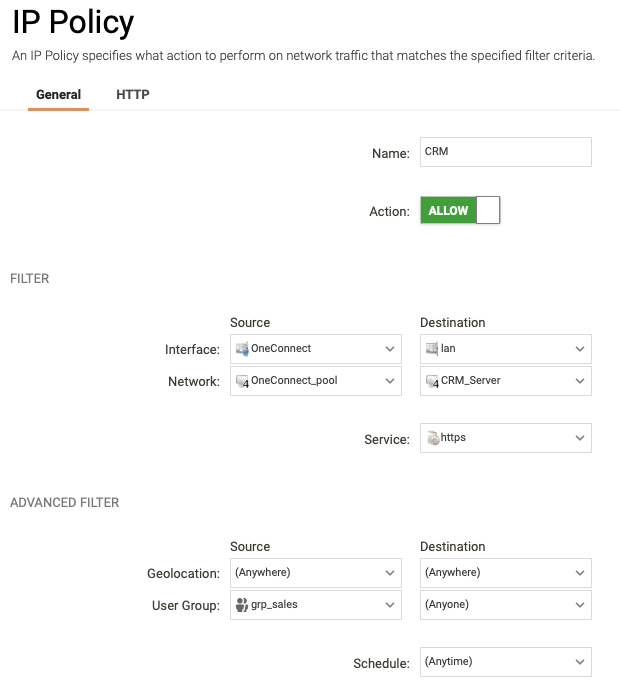
Create IP Policies for Sales Users
Navigate to:
Policies → Main IP Rules
Create a policy allowing Sales users access to the CRM system.
Example configuration:
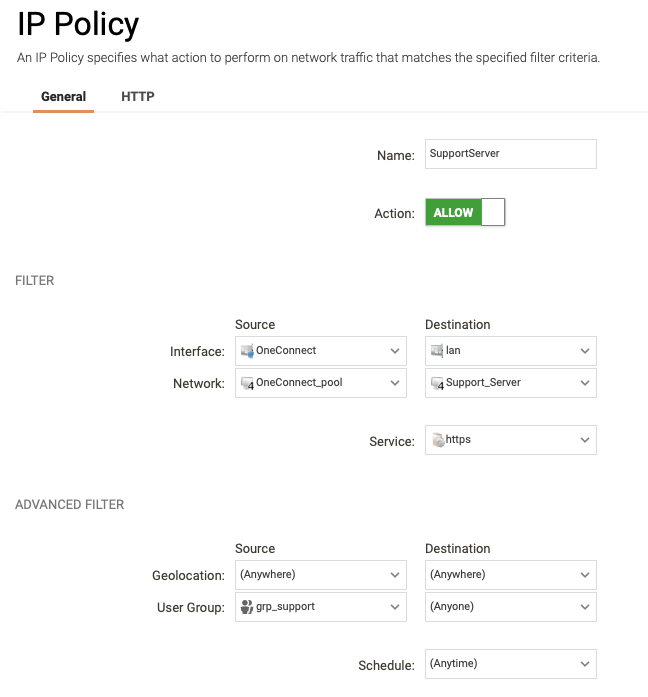
Create IP Policies for Support Users
Create another policy allowing Support users access to the support system.
Example configuration:
Recommended Final Deny Policy
To enforce Zero Trust principles, only explicitly allowed access should be permitted.
Example deny policy:
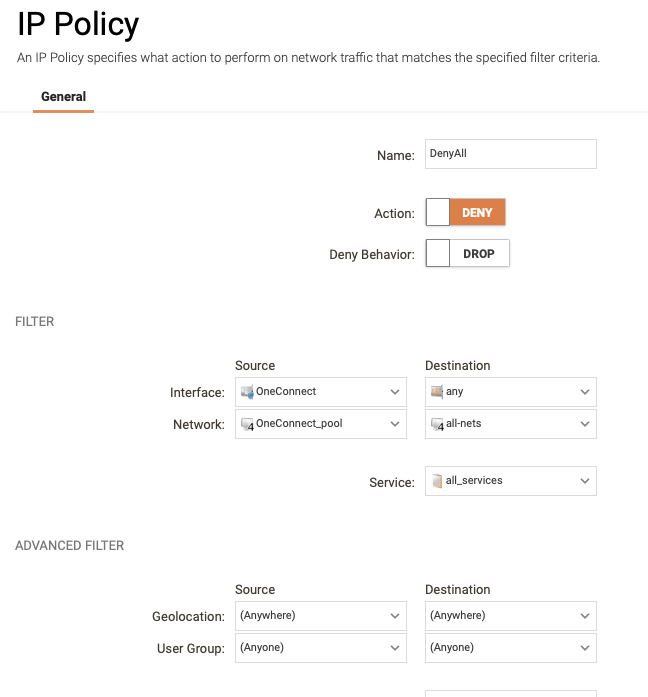
This ensures users can only access authorized applications.
Related articles
26 Jan, 2026 sase cloud oidc
13 Aug, 2026 sase cloud oidc oneconnect core
6 Dec, 2025 sase cloud oidc
4 Jul, 2025 core oneconnect oidc
4 Nov, 2024 oidc core authentication
8 Feb, 2026 sase oneconnect core userauth oidc