This guide describe how to enroll an InCenter cloud user to Clavister Cloud Services with FIDO2 Keys. The guide assumes your Clavister Cloud Services instance is already provisioned, and that you have an active Clavister IdAuth Cloud subscription.
Enrolling users to the service with FIDO2 Keys
As an InCenter administrator user, after you logged in to the service, follow these steps:
Step 1 - Activating FIDO2
Go to Add-ons, choose FIDO2 tile and click on it for details
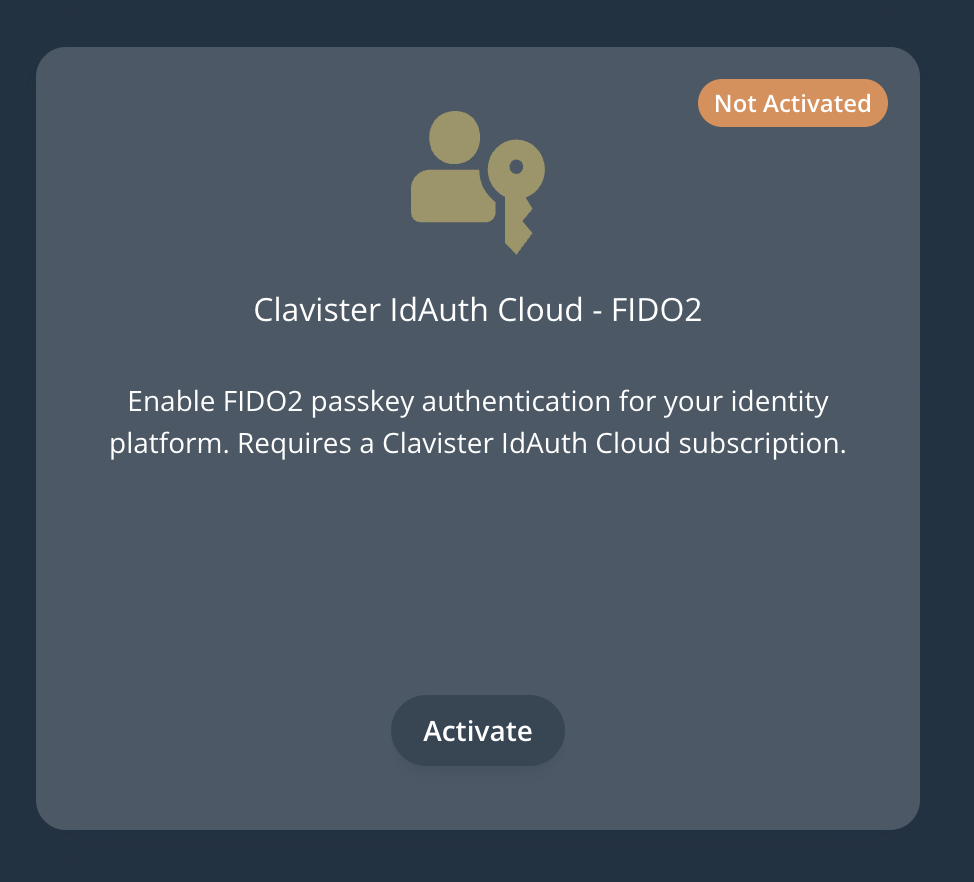
Click on Activate to Enable FIDO2 passkey authentication support
Wait for the feature to be activated
Step 2 - Adding FIDO2 Enrollment to desired user
Now that FIDO2 feature is enabled under InCenter, Navigate to Auth Manager
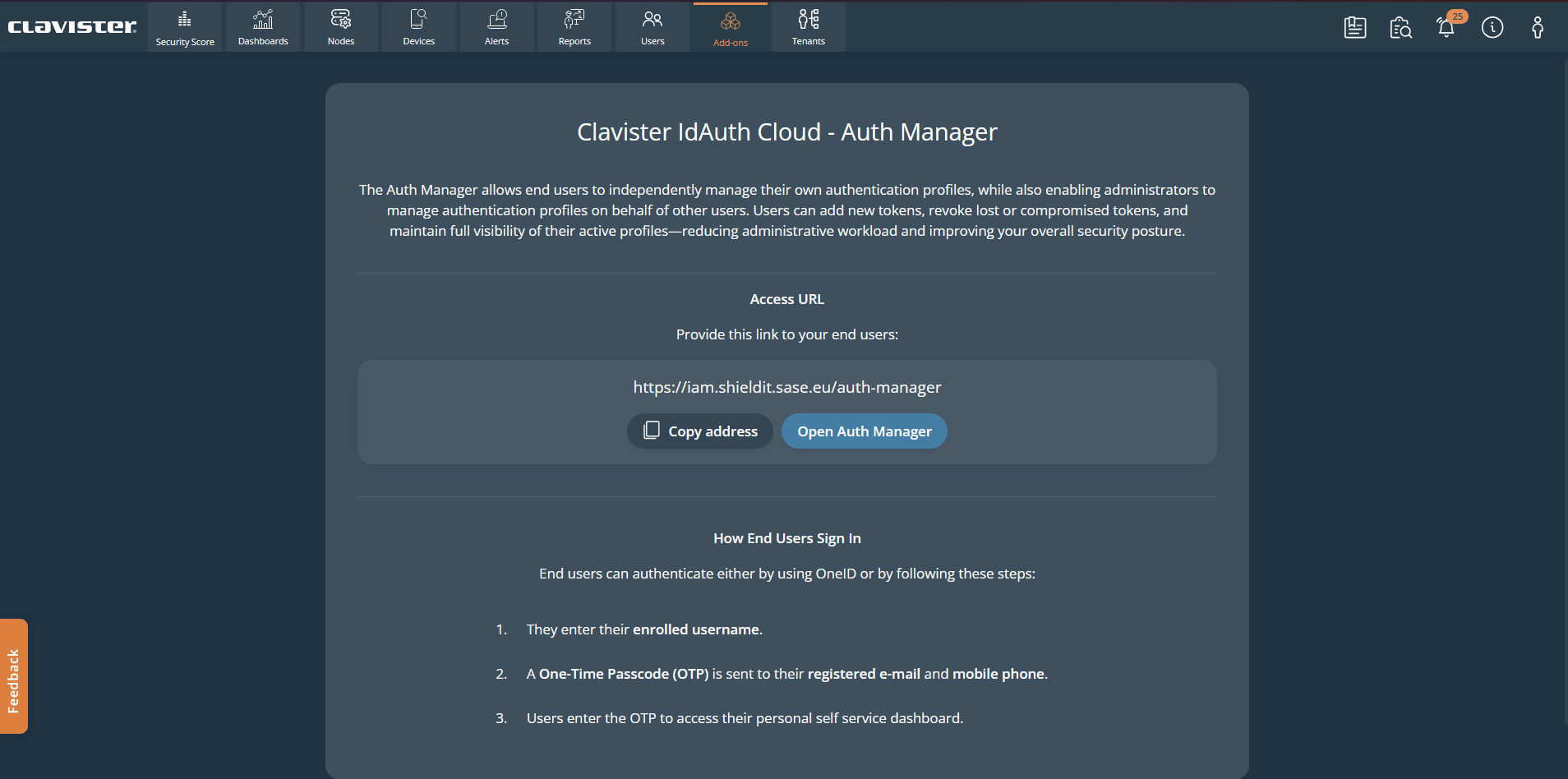
Log in to Auth Manager using either OneID or Mail & SMS OTPs.
Once logged-in, try to find the desired user you want to enable FIDO2 authentication for by entering the username under the User Search → Filters
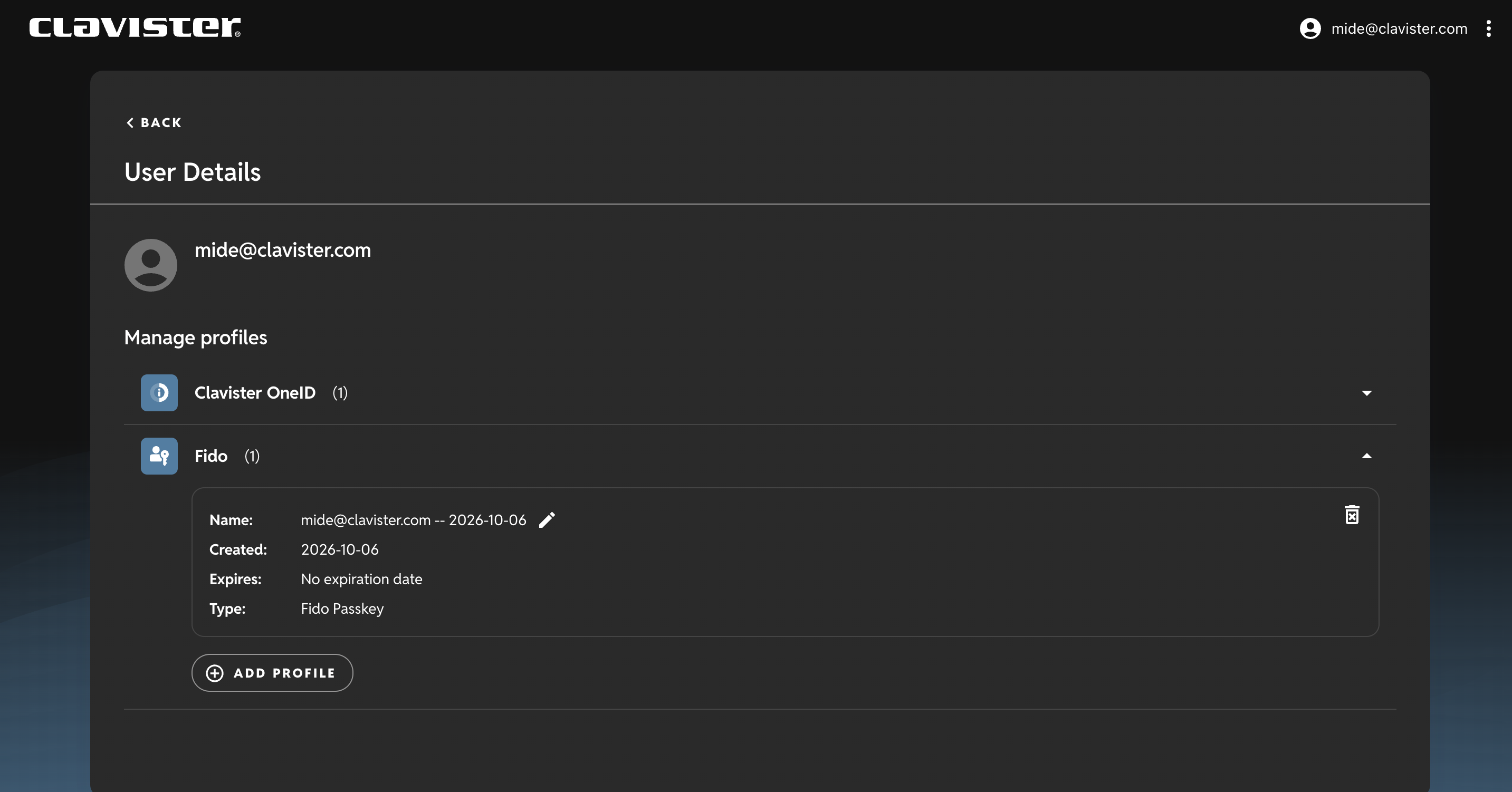
FIDO option should be visible in User Details,
Add a profile then you can enroll your key there.
Depending on client’s operating system, you can add the profile to a Password Manager, System Manager or directly on USB key.
Related articles
26 Jan, 2026 sase cloud oidc
8 Feb, 2026 oneconnect sase cloud
22 Sep, 2026 oneconnect sase
17 Sep, 2025 sase
13 Aug, 2026 sase cloud oidc oneconnect core
8 Feb, 2026 sase
6 Dec, 2025 sase cloud oidc
21 Nov, 2025 sase cloud ad
21 Nov, 2025 sase azure cloud
8 Feb, 2026 sase oneconnect core userauth oidc
20 Aug, 2026 oneconnect core sase
21 Nov, 2025 oneconnect sase cloud radius
18 May, 2026 sase
7 Feb, 2024 sase
8 Feb, 2026 sase
13 Feb, 2026 cloud sase
21 Nov, 2025 sase cloud ad