Organisations that deploy the Clavister OneConnect client through Microsoft Intune can deliver its configuration the same way. The VPN profile, including the server address, arrives by policy. The user opens the client, picks the profile and signs in, and never types a server address or opens a configuration link.
This article describes the method, the profile to create, the requirements to check first, and how to confirm the result on both the endpoint and the firewall. It needs no licence beyond Microsoft Intune itself, which is already required in order to deploy the client, and custom OMA-URI profiles are a standard Intune feature.
How it works
OneConnect for Windows is a Windows VPN plug-in application. That single fact decides the whole approach. It is not a standalone program with a settings file to copy into place. It is a Microsoft Store application that registers with the Windows VPN platform, so its connection profiles are ordinary Windows VPN profiles, and any tool that can create a Windows VPN profile can configure OneConnect.
This can be confirmed from the installed package itself. The manifest declares the restricted capability networkingVpnProvider, an application with the identifier VpnPlugin.Host, and a background task of type vpnClient:
Name              : Clavister.ClavisterOneConnect
Version           : 3.15.4.0
PackageFamilyName : Clavister.ClavisterOneConnect_0hk1dx0p9gghj

  <rescap:Capability Name="networkingVpnProvider" />
  <Application Id="VpnPlugin.Host">
  <Extension Category="windows.backgroundTasks"
     EntryPoint="OneConnect.VpnPlugin.BackgroundTask.VpnPluginBackgroundTask">
       <uap:Task Type="vpnClient" />
The package family name Clavister.ClavisterOneConnect_0hk1dx0p9gghj is the value that identifies the client to Windows. It is the same on every machine that installs OneConnect from the Microsoft Store, and it is the one value the configuration profile must contain.
Use a custom OMA-URI profile, not the built-in VPN template
The built-in Windows VPN profile template in Intune offers a fixed list of connection types supplied by Microsoft. Third party plug-in clients are not in that list, so the template cannot reference the OneConnect application. The custom OMA-URI profile writes the same underlying Windows setting directly and has no such restriction. This is the documented route for a plug-in VPN client: custom OMA-URI is a standard Intune profile type, and the VPNv2 configuration service provider is the Microsoft defined way to set a plug-in VPN profile, described at https://learn.microsoft.com/en-us/windows/client-management/mdm/vpnv2-csp and shown in Microsoft’s sample plug-in profile at https://learn.microsoft.com/en-us/windows/security/operating-system-security/network-security/vpn/vpn-profile-options.
Before you start
The profile only reaches a machine that Intune actually manages. Confirm these four points before building the profile. They are quick to check and they account for most cases where a profile appears not to arrive.
MDM user scope
An Entra joined Windows machine does not enrol into Intune unless the MDM user scope includes the user. The setting is in Entra, Devices, Mobility (MDM and MAM), Microsoft Intune. Set it to All, or to a group that contains the users concerned.
On the endpoint, dsregcmd /status confirms the result. A populated MdmUrl means the machine is managed:
C:\> dsregcmd /status
             AzureAdJoined : YES
                    MdmUrl : https://enrollment.manage.microsoft.com/...
Machines that joined before the scope was set
Machines that joined Entra before the MDM user scope was set do not pick up the change on their own. On those machines, run the auto-enrolment task again: Task Scheduler, Microsoft, Windows, EnterpriseMgmt, “Schedule created by enrollment client for automatically enrolling in MDM from Azure AD”. Check the result with dsregcmd /status and confirm that MdmUrl is populated. Re-joining the device is not needed.
A full Entra join, not an added work account
Adding a work account through Windows Settings registers the device but does not enrol it for management. A full Entra join is required. The account route reports success to the user, so it is worth confirming with dsregcmd /status rather than by the on-screen message.
Assignment during a pilot
When testing with a newly created group, allow time for group membership to propagate before concluding that a profile is not being delivered. To separate a delivery question from an assignment question, assign the profile temporarily to All Users. Because the setting is on the ./User/ path, assign it to users and not to devices.
Building the Intune profile
In the Microsoft Intune admin center, go to Devices, Configuration, Create, New policy. Choose platform Windows 10 and later, profile type Templates, Custom. Add a single OMA-URI setting:
| Field | Value |
|---|---|
| Name | Any name. It appears only in the Intune console |
| OMA-URI | ./User/Vendor/MSFT/VPNv2/<ProfileName>/ProfileXML |
| Data type | String |
| Value | Paste the ProfileXML document below exactly as shown. Do not escape the angle brackets, and do not use the String (XML file) data type |
Note: Microsoft’s own sample procedure for applying ProfileXML selects the String (XML file) data type. For this profile, use String.
<ProfileName> is the name the user will see in the OneConnect client. Use a single word with no spaces, for example CompanyVPN, and use the same string in the OMA-URI path. A space has to be written as %20 in the path and is easy to get wrong, so it is simpler to avoid one.
The ProfileXML
This is the complete document. Two values change per deployment: the server address and, if a different profile name is wanted, the name in the OMA-URI path.
<VPNProfile>
  <RememberCredentials>true</RememberCredentials>
  <PluginProfile>
    <ServerUrlList>vpn.example.com</ServerUrlList>
    <PluginPackageFamilyName>Clavister.ClavisterOneConnect_0hk1dx0p9gghj</PluginPackageFamilyName>
  </PluginProfile>
</VPNProfile>
RememberCredentials lets Windows keep the user’s credentials for the next connection. Set it to false where policy requires credentials on every connect.
If the server does not listen on 443, write a full URL
This comes from a live deployment rather than from the reference setup, where the server listened on 443 and the case did not arise. The address in the document above has no port because it uses the default. For any other port, include the scheme as well:
<ServerUrlList>https://vpn.example.com:8443</ServerUrlList>
Note: A bare vpn.example.com:8443 does not work. Microsoft describes the element as a semicolon separated list of servers in URL, hostname or IP format, and Windows models the value as a URI: the profile property VpnPlugInProfile.ServerUris is a list of URI objects (https://learn.microsoft.com/en-us/uwp/api/windows.networking.vpn.vpnpluginprofile.serveruris). A value with a colon in it is therefore read as a URI, and the part before the colon is taken as the scheme.
Do not include a CustomConfiguration element
Note: The <CustomConfiguration> element is part of the VPNv2 schema, and some published examples use it to pass vendor specific settings, but OneConnect does not take its configuration that way. When it is present, the endpoint reports “Windows was unable to parse the requested XML data” and no profile appears. The document above, without that element, is accepted. This is the first thing to check if a profile does not reach a machine.
Assignment and scope
Assign the profile to a user group in the normal way. Use the ./User/ path shown above: a plug-in VPN profile is created for the signed-in user at sign-in, which suits the usual case of a user with their own laptop. Allow one device synchronisation for the profile to arrive. It then appears in Windows Settings under Network and internet, VPN.
The server certificate
OneConnect validates the server certificate before it establishes a tunnel, and that includes checking revocation. Three points matter when planning a deployment.
- The host name must match the certificate. The host name in ServerUrlList has to appear in the certificate, as the common name or as a subject alternative name. A scheme and a port, when they are present, are not part of that match.
- Revocation must be checkable. The certificate chain has to publish a revocation list at a location the client can reach before the tunnel is up. A public certificate from a commercial authority satisfies this automatically, and it is the simplest option.
- If a private authority is used, plan for renewal. A revocation list has an expiry date. Publish it at an address reachable from outside the tunnel and regenerate it automatically, otherwise connections begin to fail some weeks later with no other change.
When the client cannot check revocation it names the reason in the connection error, so this is quick to identify on a pilot machine.
What the user sees
After the profile is assigned and the device synchronises, it appears in Windows under Network and internet, VPN, and in the OneConnect client itself. The client list is what the user sees:
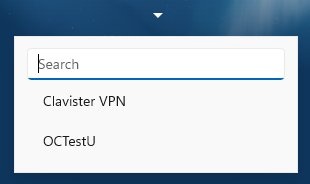
The OneConnect profile list, populated by Intune. The user chooses from this list rather than typing a server address. Two profiles were delivered during testing, and OCTestU is the one built by the profile described here.
Selecting the delivered profile and pressing Connect completes the process. The client already holds the server address, so it asks only for credentials:
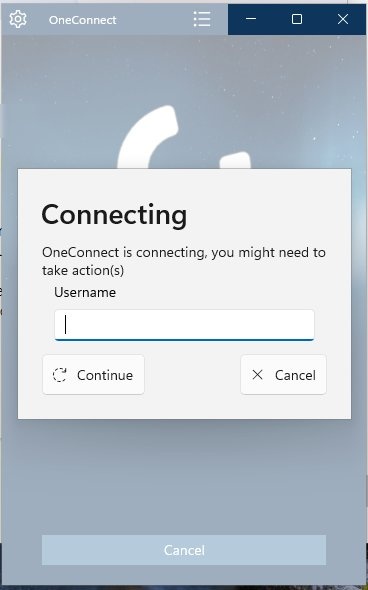
The client asks for credentials and nothing else. The server address came from the profile.
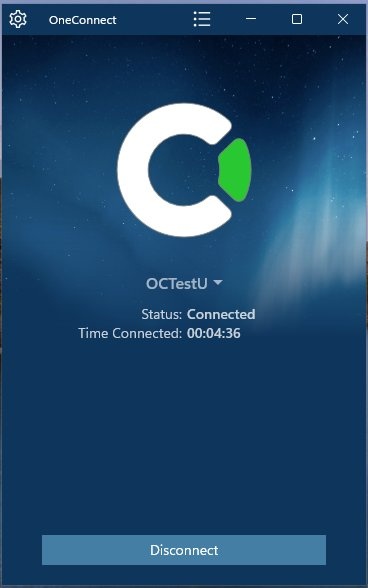
Connected on the delivered profile, with an address from the firewall address pool.
Confirming on the firewall
The firewall shows the session as an authenticated user on the OneConnect interface, which is where an administrator would look to confirm a deployment is working:
Device:/> userauth -list
Currently authenticated users:
Login      IP Address     Source Interface   Ses/Idle Timeouts
vpnuser    10.90.90.10    oc_if              none/29m 59s

Device:/> ifstat oc_if
Iface oc_if
  OneConnect over "If1"
  IPv4 Address    : 10.90.90.1
On the endpoint, the tunnel adapter carries the profile name from the OMA-URI path, with an address from the firewall pool:
InterfaceAlias      IPAddress
--------------      ---------
Ethernet            192.168.0.186
OCTestU             10.90.90.10
Two notes for administrators verifying this in the field. Sessions that terminate on the firewall itself do not appear in the connection table, so userauth -list is the correct place to look. The firewall also does not answer a ping on its own OneConnect address unless a rule permits it, so a failed ping there does not indicate a problem.
Rolling it out
- Obtain a server certificate for the OneConnect address. A public name with a certificate from a commercial authority is the simplest option, because the revocation list is published and renewed by the authority rather than by you.
- Configure the OneConnect interface, address pool and authentication on the firewall, and verify it with one client before involving Intune.
- Create the custom OMA-URI profile described above, with the real server address.
- Assign it to a pilot group of one or two users, and confirm the profile appears in Windows Settings and in the OneConnect client.
- Have a pilot user connect, then run userauth -list on the firewall to confirm the session.
- Widen the assignment to the production group.
To change the server address later, update the value in the same profile and let it redeploy. To retire a profile, remove the assignment.
Reference setup
The method was verified end to end in September 2026, with a Clavister NetWall acting as the OneConnect server and a clean Windows 11 endpoint joined to Microsoft Entra ID and enrolled in Intune. Nothing in the firewall configuration is specific to Intune:
- A OneConnect interface published on TCP 443 of the external address.
- A client address pool, 10.90.90.10 to 10.90.90.50, with the inner interface address 10.90.90.1.
- A local user database holding the test user, with authentication rules bound to the OneConnect interface.
- A server certificate issued by a certificate authority the endpoint trusts, carrying the address the client is told to connect to.
Authentication is unchanged by this method. A local user database was used for simplicity. Any authentication method the OneConnect server supports works the same way, because the delivered profile carries the server address and not the credentials.
The endpoint was a standard Windows 11 Pro machine, joined to Microsoft Entra ID, enrolled in Intune, with the OneConnect client installed from the Microsoft Store. No VPN settings were entered on the machine at any point.
The versions used were:
| Component | Version |
|---|---|
| Clavister OneConnect for Windows | 3.15.4.0, installed from the Microsoft Store |
| Clavister cOS Core | 15.00.06.10-40152 |
| Windows | Windows 11 Pro, build 26200 |
| Management | Microsoft Intune with Microsoft Entra ID |
The method depends on the Windows VPN plug-in platform and on the OneConnect package family name, neither of which changes between deployments. Organisations running different Windows builds should confirm on one machine before a wide rollout, which the pilot step above already covers.
Related articles
11 Jan, 2023 ipsec core vpn
10 Mar, 2023 core vpn ikev2 windows radius certificate
13 Jun, 2022 oneconnect macos ios windows android
28 Mar, 2023 ikev2 windows vpn routing splittunneling
18 Mar, 2024 core certificate oneconnect ipsec vpn
29 Oct, 2021 sslvpn openconnect oneconnect windows
5 Feb, 2021 incontrol howto backup windows
2 Jul, 2026 vpn core ipsec alg highavailability trafficshaping
9 Feb, 2024 core oneconnect windows splittunneling dns
21 Feb, 2023 ipsec certificate windows ca core
18 Mar, 2024 core incontrol certificate oneconnect ipsec vpn
20 Feb, 2023 core vpn ipsec
25 Feb, 2022 oneconnect windows howto
29 Mar, 2023 ipsec core windows vpn l2tp
16 Sep, 2020 vpn ipsec ikev2 windows howto dh
14 Mar, 2023 core ipsec vpn ikev2 certificate
27 Aug, 2024 oneconnect windows
22 May, 2024 netwall ikev2 windows certificate vpn core
23 Aug, 2022 sslvpn openconnect oneconnect macos windows linux core